Open the glasses app
After adding it with the QR code above, select WebUntis Glasses from your glasses app grid. It shows a six-digit pairing code.
 META DISPLAY APPS · WEBUNTIS
WebUntis Glasses brings your next class and daily timetable to supported Meta smart glasses with a display. Pair once, stay signed in, and check your school schedule with a quick glance.
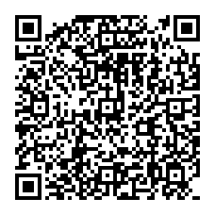
Look at this QR code with your Meta Ray-Ban Display glasses. Confirm Add on the glasses. WebUntis Glasses will appear in the app grid. Open it there, then use the web app on your phone or computer to pair your WebUntis account.
You will need your glasses, a phone or computer, and your WebUntis sign-in.
After adding it with the QR code above, select WebUntis Glasses from your glasses app grid. It shows a six-digit pairing code.
Open the web app on your phone or computer. Enter the code, WebUntis server, school identifier, username, and your normal WebUntis password.
Your next class appears on the glasses after sign-in. The WebUntis session stays saved and renews automatically if it expires.
Use your normal WebUntis password. The WebUntis Mobile QR key is not a password and is not supported as a sign-in method in this version.
Codes last ten minutes. Reload the glasses view for a new code, then enter it during setup.
Your WebUntis credentials and session are encrypted before secure online storage. The service is hosted on Cloudflare. The glasses receive a random device ID, not your password. Disconnecting removes the saved profile and pairing.
Choose “Disconnect” in the web app or on the glasses to remove your saved profile and pairing.